Why I Jailbroke My Kindle (and What I Discovered)
I got my Kindle Basic 10th Gen in 2021. I loved it for a while, read around 8 books on it, got bored of it, and then it sat in my drawer for years.
Fast forward to October 2025. I moved to Greater Noida for my BCA program and brought the Kindle with me to re-kindle (pun intended!) my love for reading. Even then, it sat collecting dust until March 29th, 2026.
I was cleaning my work desk that day and noticed this beautiful piece of hardware sitting in a drawer, so I decided to fire it up. The battery was completely dead. I charged it, and as soon as it booted into the old, familiar 'kid under a tree' logo, memories started rushing back. I thought about how Ari felt when he met Dante, and everything else I had felt reading those early books.
That feeling lasted maybe five minutes. Then I remembered why I’d stopped using it.
The Kindle's default UI was plagued with issues:
- Performance was really bad.
- PDF rendering was messy and sluggish.
- Amazon book store ads cluttered the UI, making it difficult to actually focus and read something.
- UI navigation was difficult, and the reading experience felt very artificially limiting.
This post isn't just a guide on how I jailbroke my Kindle. It's what I discovered after stripping away the Amazon framework and treating the Kindle for what it really is: a highly constrained, portable e-ink Linux machine.
Here is what you will gain from this post:
- Demystifying the Exploit: A look into how the LanguageBreak jailbreak uses Amazon's own demo mode against itself.
- Escaping the Ecosystem: Steps to rip out the Amazon ads and framework, replacing them with a fast, customizable reading interface (KOReader) and local Wi-Fi file transfers.
- Building a Developer Environment: How I built a persistent, usable BusyBox Linux terminal environment optimized for e-ink.
- System-Level Tuning: Practical ways to tune an embedded system with only 512MB RAM, including killing bloatware, configuring ZRAM swap to prevent crashes, and managing CPU governors.
If you've ever wanted to truly own your Kindle hardware and look under the hood, here is exactly what I discovered.
#Mental model: what jailbreaking actually unlocks
Jailbreaking did not magically make the Kindle faster.
What it did give me was control in three places:
- Interface layer: I could replace the stock UI with KOReader and my own tools.
- Runtime layer: I could get a persistent shell and make terminal behavior predictable.
- System layer: I could tune CPU, memory, and background services instead of living with default policies.
That shift, from just using the device to actually controlling it, is the real discovery in this post.
#The Starting Point
When I first booted up the device, it was running on firmware version 5.16.2.1.1. A quick search revealed it was vulnerable to a jailbreak, but only if it didn't update. Thankfully, I had airplane mode on, preserving the vulnerable firmware.
#Jailbreaking the Device
After some digging through MobileRead threads and GitHub repos, I landed on LanguageBreak, the only viable jailbreak for firmware 5.16.2.1.1.
At a high level, the process looked deceptively simple:
- Copy payload files to the Kindle
- Enter demo mode
- Let the exploit execute
- Exit demo mode
But what actually happens underneath is far more interesting.
#Exploit chain (what’s really going on)
LanguageBreak abuses Kindle’s demo mode provisioning system.
When entering demo mode, the device looks for external configuration files, specifically a demo.json. This file is trusted far more than it should be.
That trust is the vulnerability.
The jailbreak works by:
- Supplying a crafted demo.json
- Triggering execution of a shell payload (run.sh)
- Escaping the restricted demo environment
- Gaining persistent access to the underlying system
In other words:
Demo mode unintentionally becomes a code execution vector.
#Practical steps I followed
I connected the Kindle to my PC and, instead of using Windows Explorer, copied the payload using WSL.
This gave me better control over file operations and avoided unwanted Windows artifacts (like hidden metadata files) interfering with the exploit.
ls /mnt/ # verify your Kindle mount (usually /mnt/e or similar)cp -r ~/Downloads/LanguageBreak/* /mnt/<drive-letter>/syncAfter copying, I safely ejected the device from Windows before disconnecting the cable.
#Triggering the exploit
On the Kindle:
- Open the search bar
- Enter:
;enter_demoThis switches the device into demo provisioning mode, where the exploit is automatically triggered via the injected configuration.
#What I observed
- The screen briefly refreshed multiple times
- The UI transitioned into a demo/setup interface
- The device performed internal operations (no clear UI feedback)
There’s no explicit “success” message.
#Exiting demo mode
Once the exploit finished:
;exit_demoThe device rebooted back into normal mode.
#Verifying jailbreak
The first clear sign that the jailbreak worked appeared immediately after reboot.

Instead of the usual boot screen, the Kindle displayed a modified splash screen with a “JAILBREAK” label beneath the tree.
At this point, the device was no longer locked down.
Now we get to the fun part.
#Installing a custom launcher and a package manager
With the jailbreak in place, I needed a way to install packages and a way to execute custom functionality from the Kindle UI itself.
The two components I needed for this are:
- KUAL Kindle Unified Application Launcher
- MRPI MobileRead Package Installer
I installed them both in one go.
ls /mnt/

mkdir -p /mnt/<drive-letter>/mrpackages

cp -r ~/Downloads/MRPI/* /mnt/<drive-letter>/
cp ~/Downloads/KUAL*.bin /mnt/<drive-letter>/mrpackages/

sync#Removing OTA ability
One problem that remained was the fear of this jailbreak being overwritten by a firmware update. Thankfully, KUAL provides an OTA updater renaming functionality that disables the binary responsible for updates.
We can access KUAL directly from our Kindle library. It appears like any other book.
- Open the KUAL booklet from your Kindle library.
- In KUAL, open the OTA tools menu.
- Select Rename OTA Binaries and then Rename.
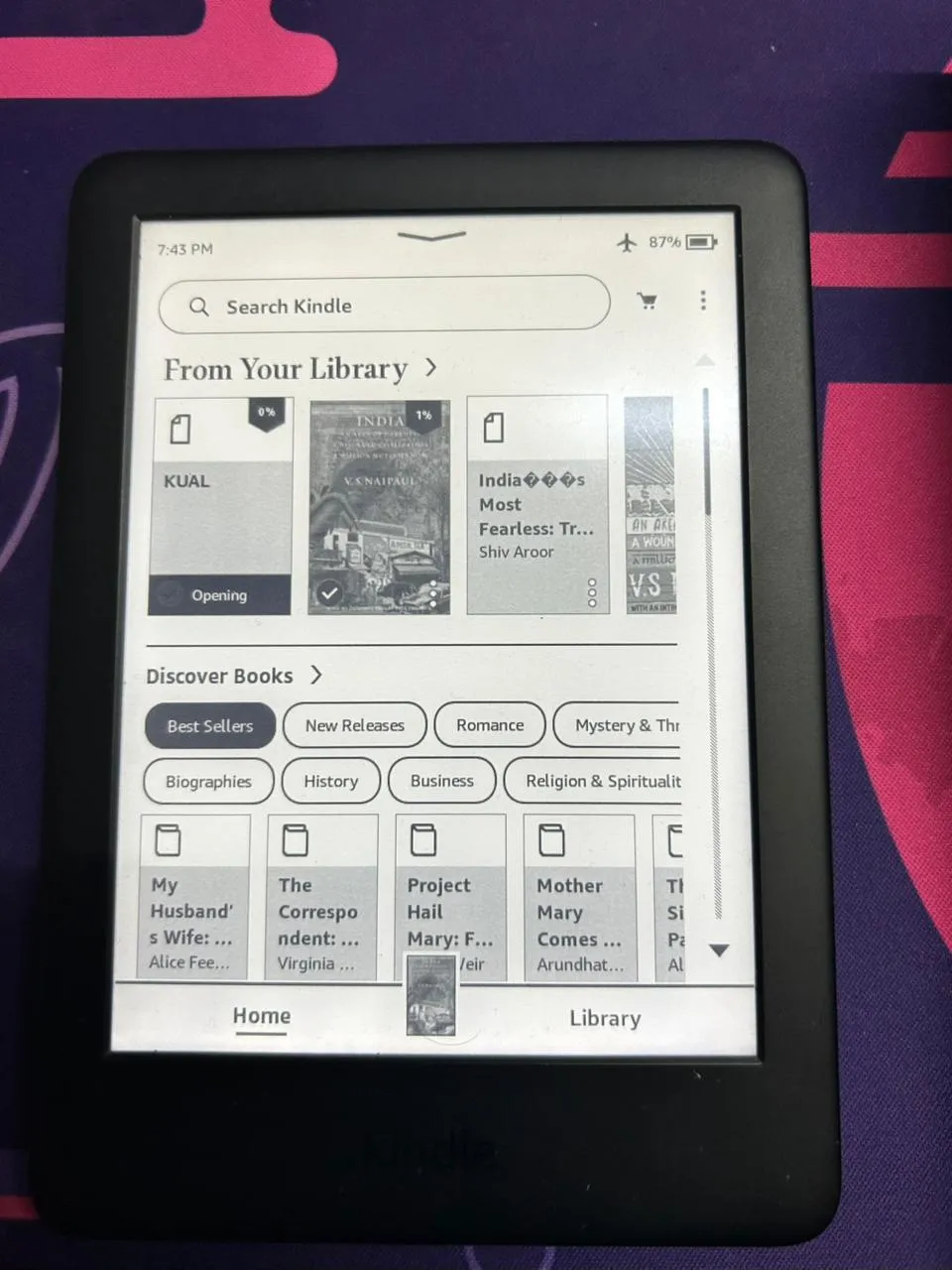
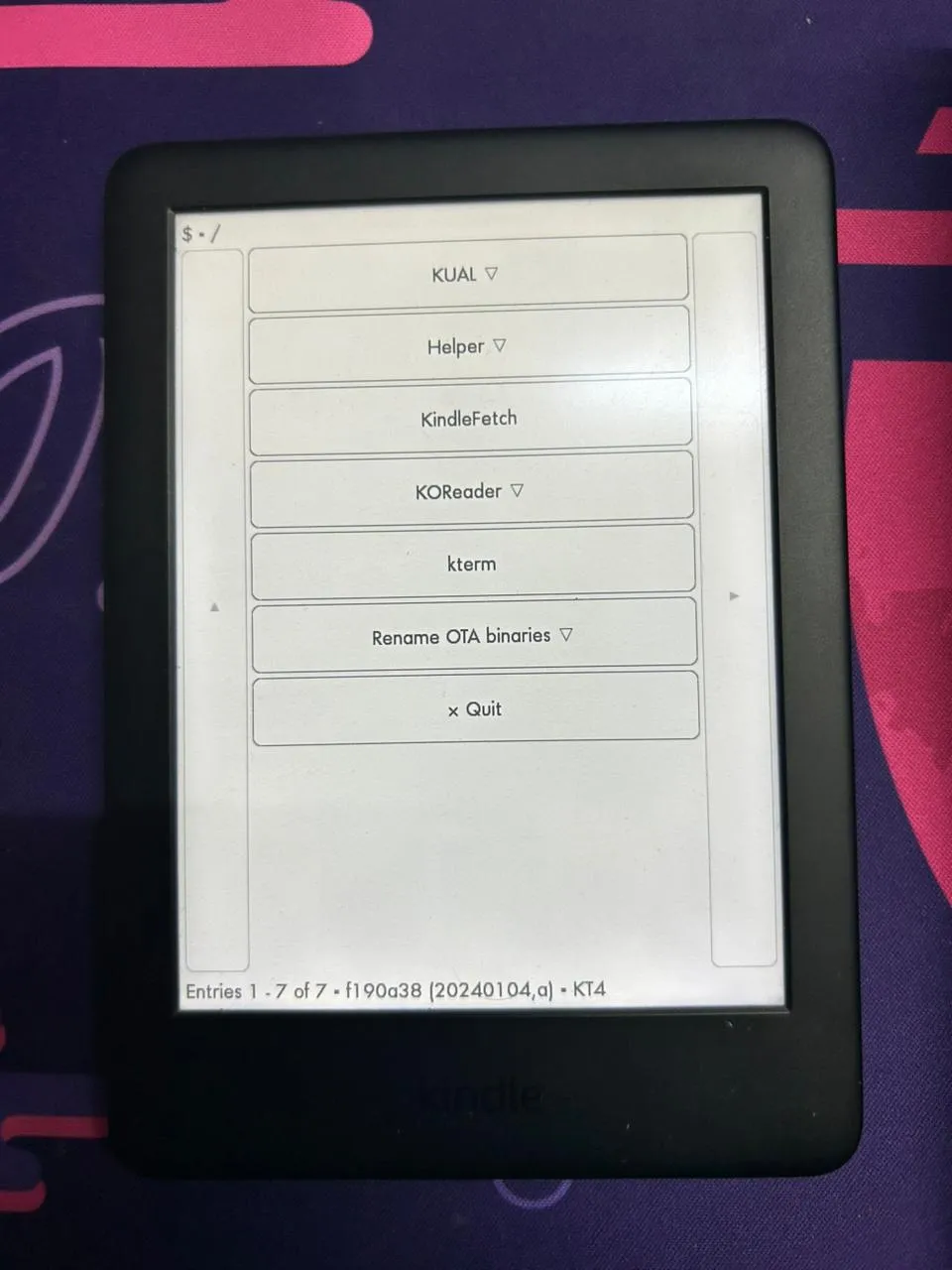
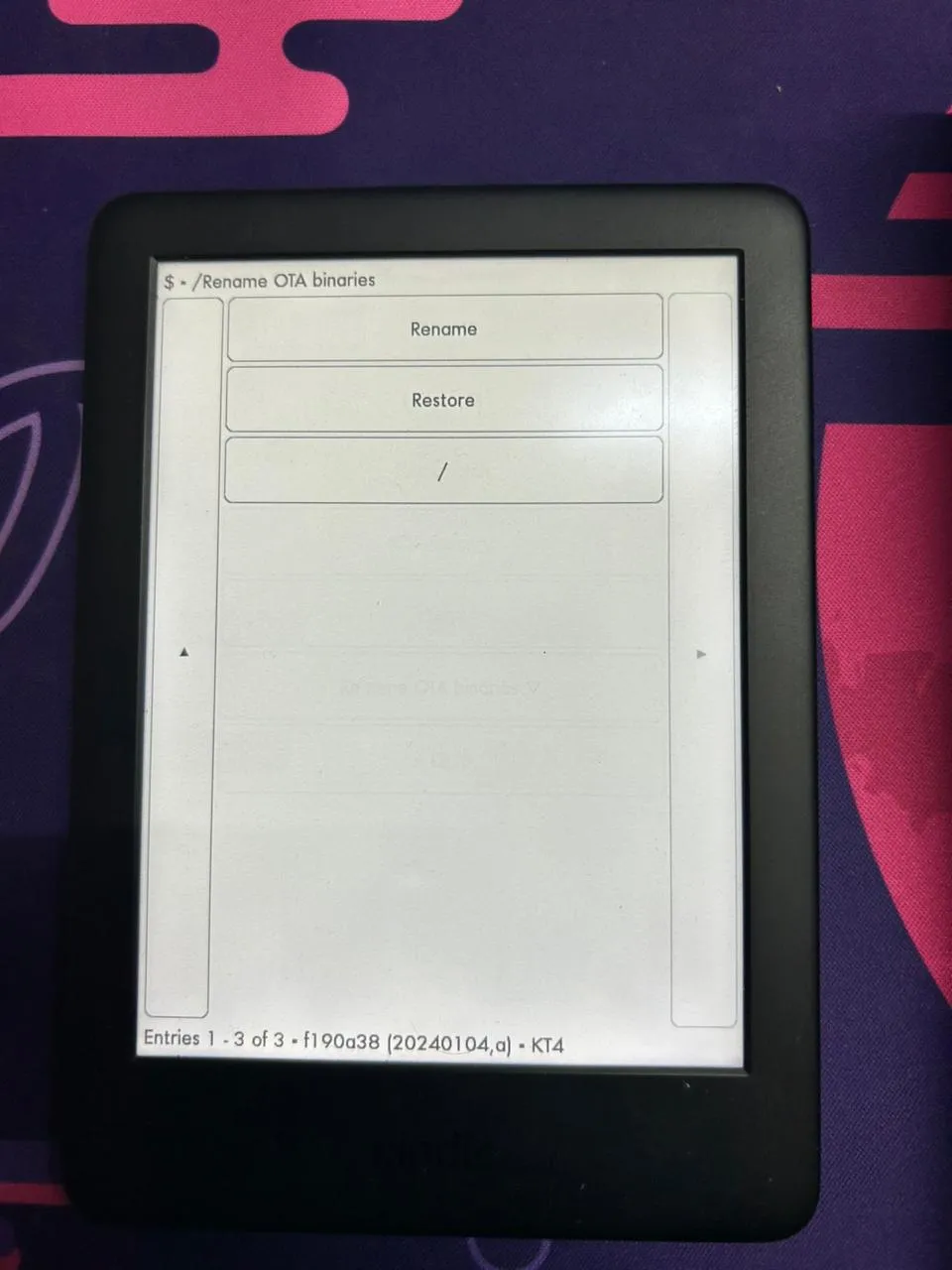
Disabling OTA updates in KUAL
Launch KUAL from your library like a normal book.
#Installing KOReader
KOReader is a Lua-based custom document viewer that is fast, extensible through plugins, and highly configurable.
The stock Kindle reader felt limiting, especially for PDFs and layout-heavy content. KOReader fixes most of that.
#I installed it using MRPI.
cp ~/Downloads/koreader*.bin /mnt/<drive-letter>/mrpackages/
sync#Launching KOReader
KOReader is launched through KUAL.
Opened KUAL → KOReader
Three options are available:
- Start KOReader: runs with Kindle framework, good if you switch between KOReader and Amazon UI
- Start KOReader (no framework): skips Amazon UI, frees resources
- Start KOReader (ASAP): launches immediately without waiting for full system init
#First impressions
- Noticeably faster page turns
- Better PDF handling
- More control over rendering
- No UI clutter
#Tradeoffs
- UI is less polished
- Takes time to configure properly
- Not as tightly integrated as the stock reader
#My KOReader setup
I configured the hell out of my KOReader until I got it to look exactly the way I wanted it to. I use the Atkinson Hyperlegible Next font and a short list of plugins and patches:
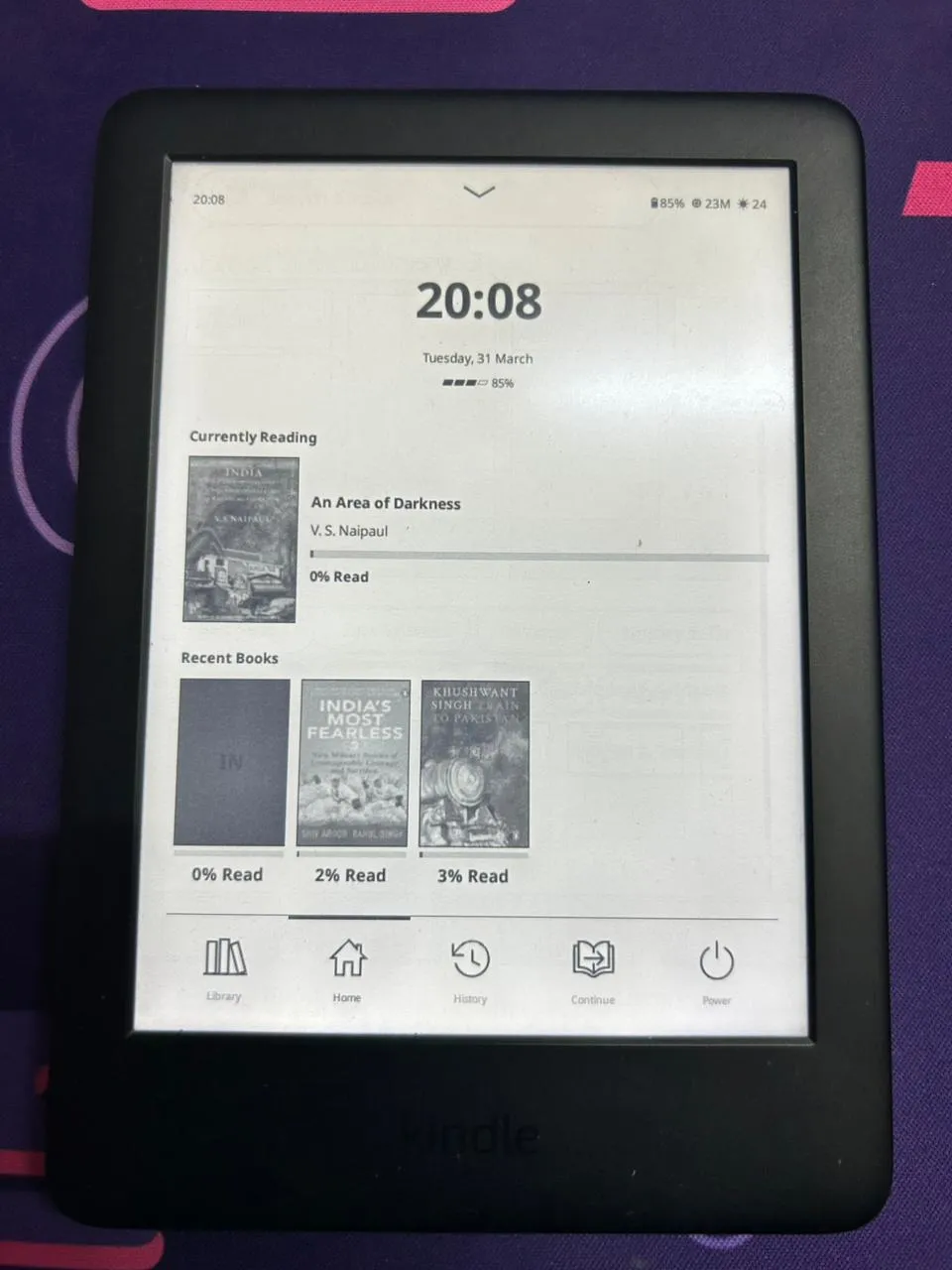
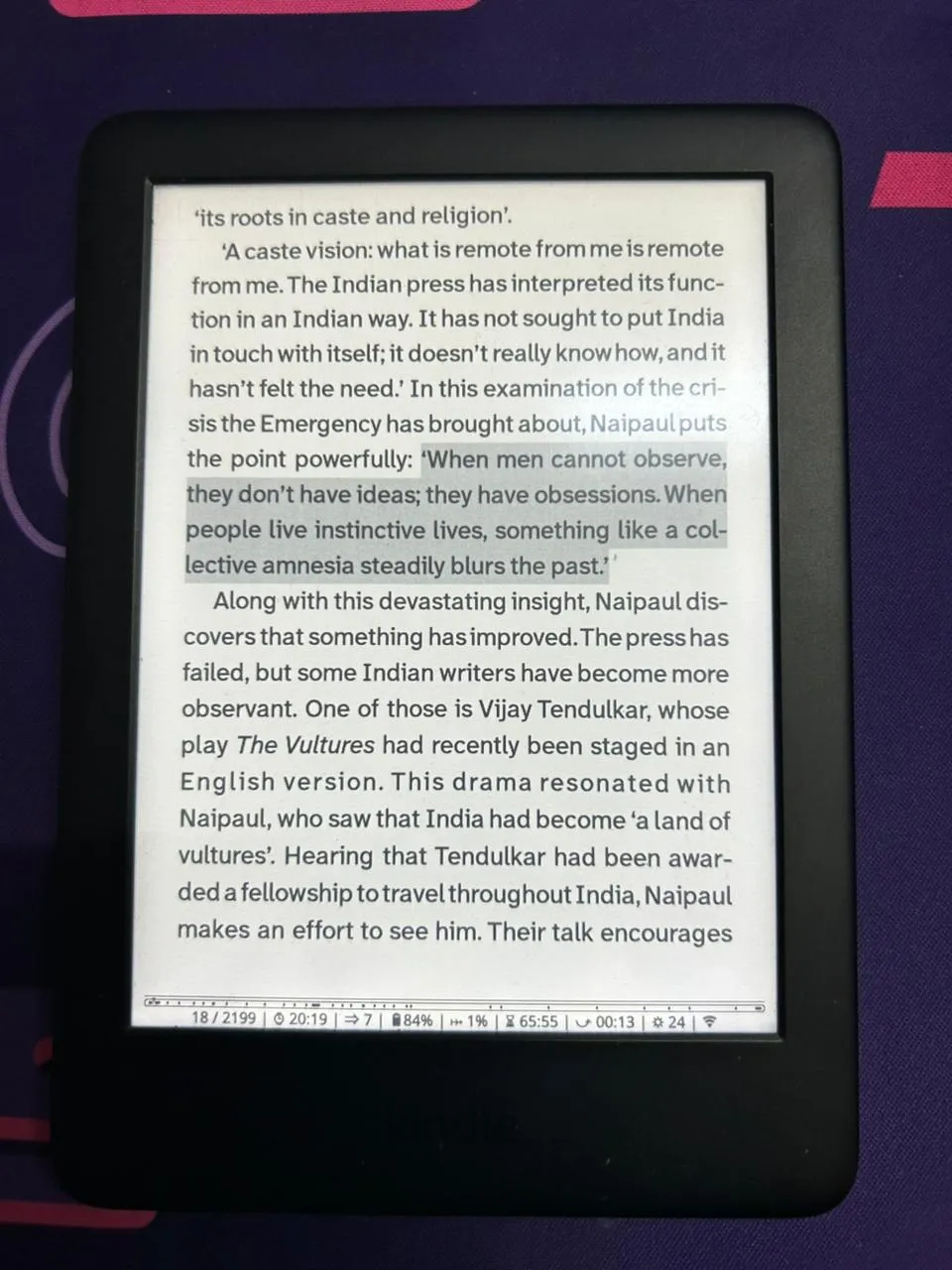

KOReader setup snapshots
Home screen with the cleaner KOReader layout.
Plugins I use:
- Simple UI: Cleans up KOReader's interface and makes it look far more modern and readable.
- App Store: Lets you browse publicly available KOReader plugins and patches, then install or update them from one place.
- FileSync: Starts a local web server on the Kindle and shows a QR code. Scanning it opens a browser-based file manager on your phone, so you can transfer books wirelessly.
- SSH Server: A native plugin that enables remote shell access over Wi-Fi on port 2222. This grants instant root access to the device without requiring USB cables.
Patches:
- browser-folder-cover.lua: Adds cover images to mosaic folder entries using the first cover from the current sort order.
- kobo-style-screensaver.lua: Applies a Kobo-style screensaver (my favorite patch).
Dictionaries:
- Webster's 1913 Dictionary: Since Amazon's default dictionaries don't work inside KOReader, I downloaded the classic Webster's 1913 dictionary in Stardict format (which KOReader natively supports). It's incredibly thorough and pairs perfectly with reading older texts.
With the reading experience finally fixed, it was time to look under the hood. To truly tune the Kindle's Linux core, I needed a proper shell.
#Building a usable terminal emulator
This is what I ended up building:
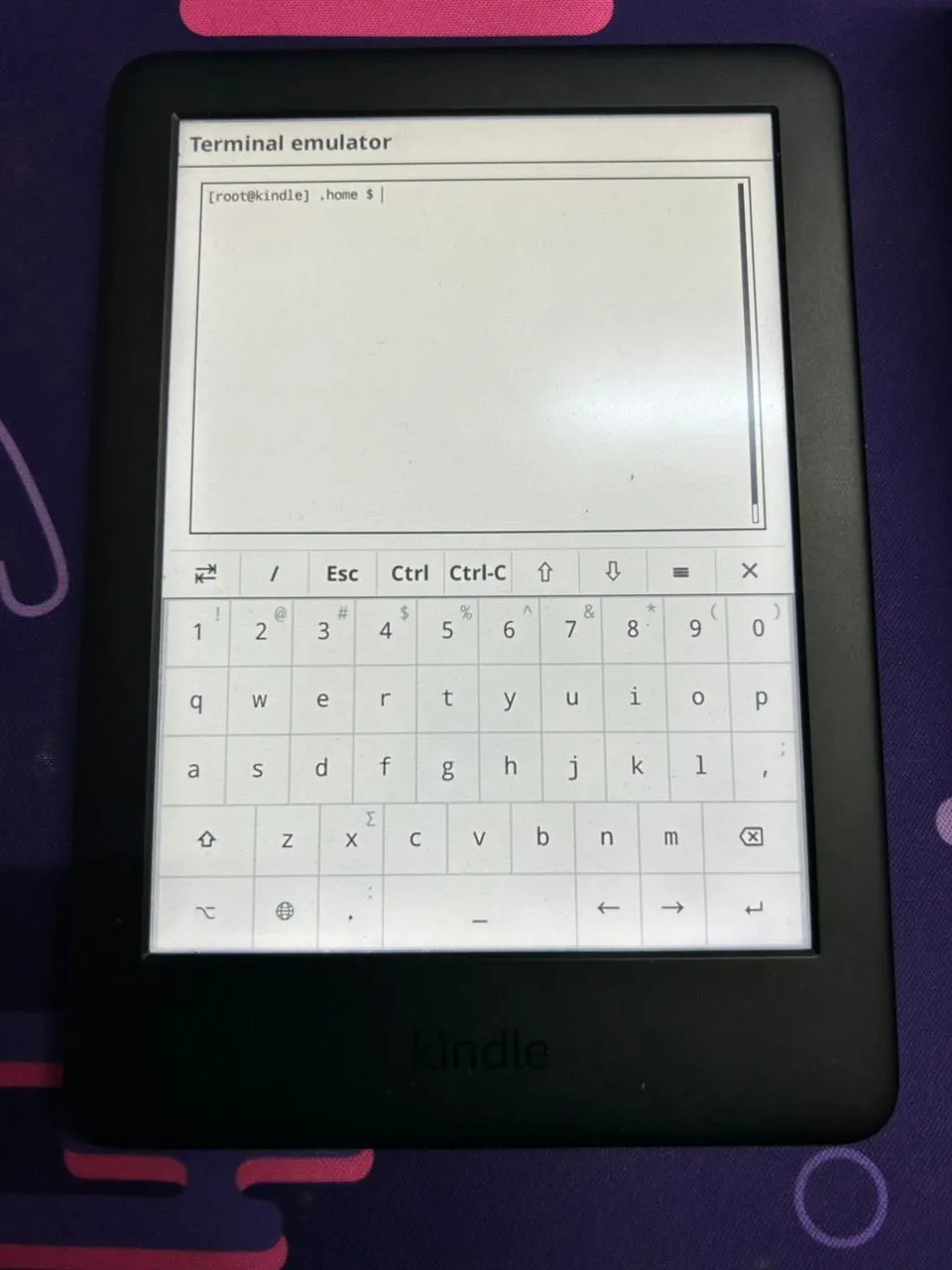
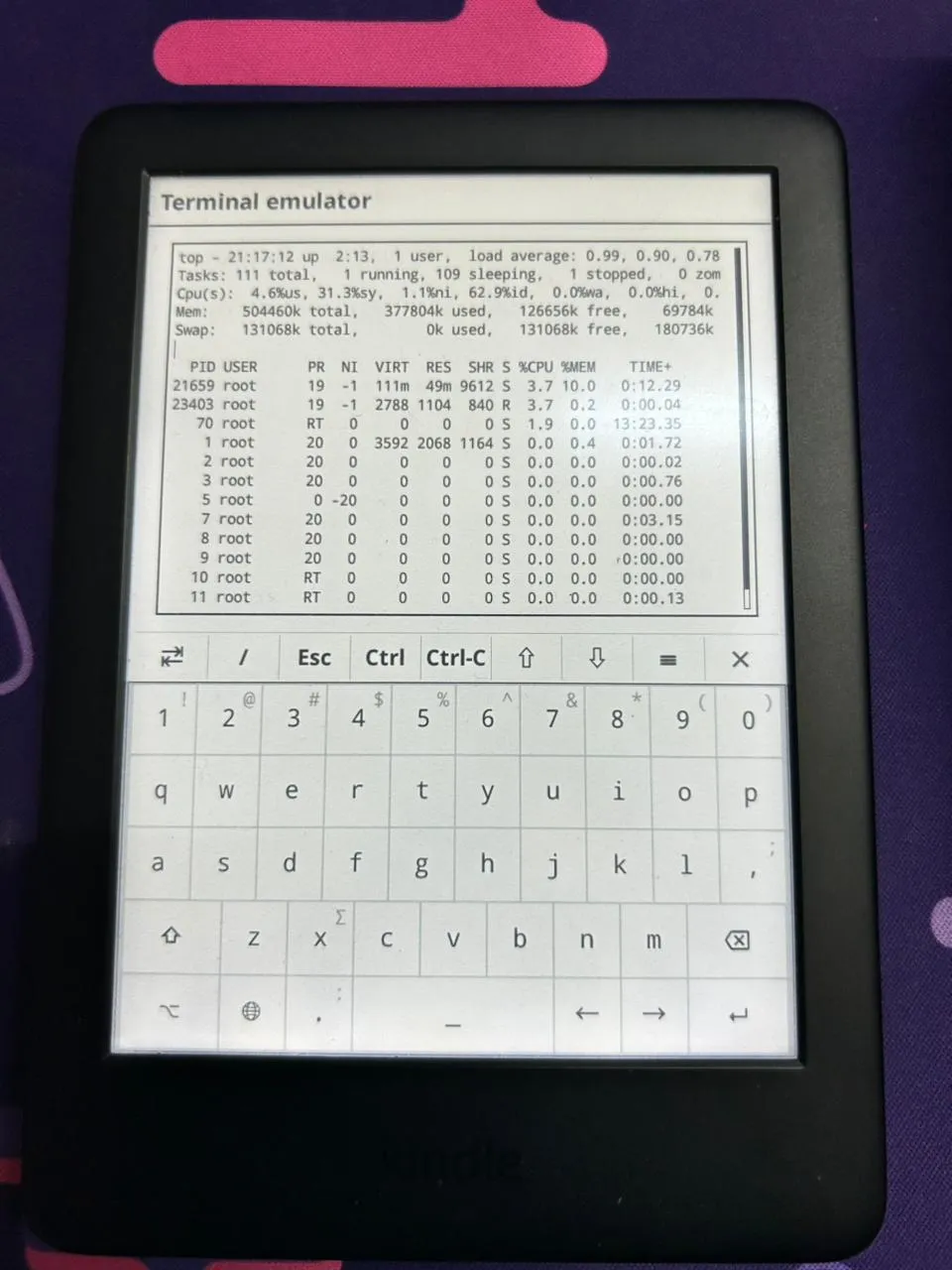
Fully configured terminal environment
Minimal prompt optimized for e-ink
Surprisingly, my custom terminal setup started with a feature KOReader already ships with.
You can access it directly from the UI:
Open the top menu → Tools → More tools → Terminal emulator → Open terminal session
It's an extremely limited vt52 terminal emulator.
Under the hood, it’s just a lightweight Lua plugin that draws directly to the framebuffer and exposes a very basic shell interface. No proper terminfo, barely any ncurses support, and the rendering is constrained by e-ink.
But we made it work, like we always do :)
Out of the box, it launches:
/bin/ashwhich is BusyBox ash. It works, but that’s about it, no config, no aliases, no persistence, and every session starts from scratch.
The same applied when accessing the system remotely. Thanks to the built-in SSH Server plugin I mentioned earlier, I had full wireless shell access to the device. But connecting via SSH wasn’t any better than the local terminal. It dropped me into a completely different environment.
What I wanted was simple:
the exact same shell experience in both places (KOReader terminal and SSH).
If I run a command in one place, it should behave the same in the other.
Same prompt, same aliases, same behavior everywhere.
#The final setup
Before getting into the problems, here’s what I ended up with.
# /usr/bin/ashwrap
#!/bin/ash

export HOME=/mnt/us/.home
export PATH=/usr/local/sbin:/usr/local/bin:/usr/bin:/usr/sbin:/sbin:/bin:/mnt/us/koreader/scripts:/mnt/us/koreader/plugins/terminal.koplugin/
export TERMINFO=/mnt/us/terminfo

[ -z "$USER" ] && export USER=root
[ -z "$LOGNAME" ] && export LOGNAME=root
export HOSTNAME=kindle

export ENV=$HOME/.ashrc

[ ! -d "$HOME" ] && mkdir -p "$HOME"
cd "$HOME"

printf "\033[2J\033[H"

exec /bin/ash -i# /mnt/us/.home/.ashrc
PS1='[\u@\h] \W $ '
export HISTFILE=/mnt/us/.home/.ash_history
export HISTSIZE=2000
HISTCONTROL=ignoredups
unset LS_COLORS
export LESS='-R -M -i -J -z-2'
export LESSHISTFILE=-
export PAGER=less
with_term() {
TERM=linux "$@"
}
case "$TERM" in
xterm*|screen*)
export TERM=xterm
;;
esac
alias ls='ls --color=never'
alias ll='ls -alF'
alias la='ls -A'
alias grep='grep --color=never'
alias df='df -h'
alias du='du -h'
alias ..='cd ..'
alias ...='cd ../..'
alias clear='cls'
alias redraw='printf "\033c"'
alias top='with_term top -d 5'
alias less='with_term less'
alias more='with_term more'
alias vi='with_term vi'
alias vim='with_term vim'
alias nano='with_term nano'
alias watch='with_term watch'
alias man='with_term man'
stty erase ^H 2>/dev/null# /etc/profile
export HOME=/mnt/us/.home
export ENV=$HOME/.ashrc
case "$TERM" in
xterm*|screen*)
export TERM=xterm
;;
esac
[ -z "$ASHWRAP" ] && export ASHWRAP=1 && exec /usr/bin/ashwrap
#What made this necessary
Once you actually start using it, the problems show up immediately:
- No persistence:
ashdoesn’t load anything by default, so no config, no aliases, nothing sticks. - Two completely different environments:
- KOReader →
TERM=vt52 - SSH →
TERM=xterm-256color
- KOReader →
- No terminfo for either: the system doesn’t have proper entries for
vt52orxterm-256color. - Basic tools break: commands like
topandlessrely on terminal capabilities that just aren’t there. - Weird filesystem setup:
/rootisn’t usable androotfsis read-only.
Individually, these are manageable.
Together, they turn the terminal into a frustrating mess.
#What actually worked
The solution came from fixing the underlying capabilities and understanding how BusyBox ash works.
First, to fix the broken terminal rendering in KOReader, I wrote a custom vt52.terminfo file:
vt52|dec vt52,
    am,
    cols#80, lines#24,
    bel=^G,
    clear=\EH\EJ,
    cr=\r,
    cub1=\ED,
    cud1=\EB,
    cuf1=\EC,
    cuu1=\EA,
    home=\EH,
    ed=\EJ,
    el=\EK,
I compiled this on the device using tic and pointed my shell setup towards it in the wrapper script via export TERMINFO=/mnt/us/terminfo.
Next, I had to figure out how to make my config persist across sessions. Instead of relying on hacky workarounds, I just leaned into the built-in mechanism that BusyBox ash expects:
ENV=/path/to/.ashrcThen unified everything through a single entry point:
KOReader → ashwrap → ash → .ashrc
SSH → /etc/profile → ashwrap → ash → .ashrc
For terminal compatibility, instead of global hacks, I scoped fixes only where needed:
with_term() {
    TERM=linux "$@"
}#E-ink changes everything
A normal terminal setup doesn’t translate well to e-ink.
Too many redraws = flicker and ghosting.
So I kept everything minimal:
- simple prompt
- no colors
- slower refresh for top
- lightweight pager
#Final result
At the end of all this, I had:
- A persistent shell environment
- Identical behavior across KOReader and SSH
- Working terminal tools
- Minimal overhead
#Key Takeaways from the Terminal Build
- BusyBox
ashis notbash - Embedded Linux environments are tricky
- Forcing behavior makes things worse. Using native mechanisms keeps things clean
This is where the project stopped being:
"I jailbroke my Kindle"
And became:
"I built a proper embedded Linux environment on it"
#Digging Into the System
At this point, I had a usable terminal environment, but the device itself still felt slow.
Not broken, just… constrained.
Given the hardware (~512MB RAM, weak CPU, slow eMMC, and a bunch of background services), I stopped tweaking randomly and started looking at what the system was actually doing.
#Unlocking the Root Filesystem
To fully optimize the device, I needed to get past Amazon's default security. The Kindle's root Linux filesystem is mounted read-only by default.
I actually had to bypass this earlier when creating the /usr/bin/ashwrap terminal wrapper, but it became even more important for the kernel and memory tweaks. To save any system changes across reboots or write to anything outside the /mnt/us user storage partition, I had to run a simple built-in command:
mntroot rwOnce that was executed, the filesystem became read-writable. With the system wide open, the real hacking could begin.
#CPU governor problem
Manually, this worked great:
echo interactive > /sys/devices/system/cpu/cpu0/cpufreq/scaling_governorThe UI immediately felt smoother.
After a reboot?
ondemandSomething was overriding it.
#What was happening
After digging through /etc/init:
- Early boot:
echo performance > /sys/devices/system/cpu/cpu0/cpufreq/scaling_governor- Later:
perfd→ setsondemand
So the actual sequence looked like:
performance → ondemand → (my script?)
The issue wasn’t what to set.
It was when.
#What didn’t work
- running the script earlier ❌
- running it later ❌
- adding fixed delays ❌
All of these are just guessing.
Sometimes they work, sometimes they don’t.
#What worked
Instead of guessing timing, I waited for the system to settle.
CPU_PATH="/sys/devices/system/cpu/cpu0/cpufreq"

while true; do
    GOV=$(cat "$CPU_PATH/scaling_governor" 2>/dev/null)

    [ "$GOV" = "ondemand" ] && break
    sleep 1
done

echo interactive > "$CPU_PATH/scaling_governor"
Now it follows:
performance → ondemand → interactive
No race conditions, no timing hacks.
#Memory and swap
Memory is where things get tricky on this device.
Disk swap was not an option.
The built-in eMMC is slow, and swapping to disk would just turn memory pressure into I/O latency. That’s worse than the original problem.
So instead of using storage, I set up ZRAM.
echo lzo > /sys/block/zram0/comp_algorithm
echo 134217728 > /sys/block/zram0/disksize
mkswap /dev/zram0
swapon -p 80 /dev/zram0
This gives you compressed swap in RAM, which is much faster and avoids touching disk entirely.
#Swappiness
Even with ZRAM, swapping isn’t free.
You’re trading memory pressure for CPU usage (compression), and CPU is already limited.
So I didn’t want the system constantly swapping unless it actually needed to.
echo 65 > /proc/sys/vm/swappinessThe idea was:
- avoid wasting CPU cycles on compression
- only use swap when memory pressure actually builds up
#VM tuning
Along with that:
echo 10 > /proc/sys/vm/vfs_cache_pressure
echo 5 > /proc/sys/vm/dirty_background_ratio
echo 10 > /proc/sys/vm/dirty_ratio
echo 8192 > /proc/sys/vm/min_free_kbytes
This helps keep things stable under load and avoids sudden spikes.
#Services
There’s a lot running that doesn’t need to be.
I disabled things like:
fastmetrics→ telemetry / analyticsiohwlogs,printklogs,stackdumpd,syslog→ logging and diagnosticsplayermgr,playermgr_limit→ media handlingttsorchestrator,whisperstore→ text-to-speech and voice-related stuffcontentpackd,progressivedownloads→ background content and downloadsbtfd→ bluetooth-related daemon
Check:
initctl listYou want:
service stop/waiting#Tying It All Together: The Init Script
Running these commands manually every time I booted the Kindle wasn't going to cut it. Because the device uses upstart for its init system, I wrote a custom service to bind all of these tweaks together and automate the process.
I placed this in /etc/init/perf-tweaks.conf:
# Performance tweaks (final, event-driven, perfd-aware)

start on started perfd
stop on stopping perfd

script
    exec >> /tmp/perf-tweaks.log 2>&1
    set -x

    (
        # ---------------------------
        # Stage 1: early tweaks
        # ---------------------------
        sleep 5

        # VM tuning
        echo 65 > /proc/sys/vm/swappiness
        echo 10 > /proc/sys/vm/vfs_cache_pressure
        echo 5 > /proc/sys/vm/dirty_background_ratio
        echo 10 > /proc/sys/vm/dirty_ratio
        echo 8192 > /proc/sys/vm/min_free_kbytes

        # ZRAM
        if [ -e /sys/block/zram0 ]; then
            echo lzo > /sys/block/zram0/comp_algorithm 2>/dev/null || true
            echo 134217728 > /sys/block/zram0/disksize 2>/dev/null || true
            mkswap /dev/zram0 2>/dev/null || true
            swapon -p 65 /dev/zram0 2>/dev/null || true
        fi

        # Stop unnecessary daemons
        for svc in fastmetrics iohwlogs printklogs stackdumpd contentpackd \
                   ttsorchestrator playermgr playermgr_limit progressivedownloads \
                   btfd whisperstore syslog; do
            initctl stop $svc 2>/dev/null || true
        done

        # ---------------------------
        # Stage 2: wait for perfd to finish (detect ondemand)
        # ---------------------------
        CPU_PATH="/sys/devices/system/cpu/cpu0/cpufreq"

        while true; do
            if [ -f "$CPU_PATH/scaling_governor" ]; then
                GOV=$(cat "$CPU_PATH/scaling_governor" 2>/dev/null)

                if [ "$GOV" = "ondemand" ]; then
                    break
                fi
            fi
            sleep 1
        done

        # ---------------------------
        # Stage 3: final override
        # ---------------------------
        echo interactive > "$CPU_PATH/scaling_governor"

        # safety reapply (perfd can race)
        sleep 5
        echo interactive > "$CPU_PATH/scaling_governor" 2>/dev/null || true

        # ---------------------------
        # Interactive governor tuning
        # Fix: default interactive causes kernel feedback loop (~50Hz wakeups)
        # Tuned: lower wake frequency + damping + earlier boost
        # Result: ~3–7% idle CPU with better responsiveness
        # ---------------------------

        INT_PATH="/sys/devices/system/cpu/cpufreq/interactive"

        if [ -d "$INT_PATH" ]; then
            # Reduce wakeups (20ms → 40ms)
            echo 40000 > "$INT_PATH/timer_rate"

            # Prevent rapid oscillation
            echo 150000 > "$INT_PATH/min_sample_time"

            # Add slight delay before jumping to high freq (damping)
            echo 30000 > "$INT_PATH/above_hispeed_delay"

            # Boost earlier (99 → 55)
            echo 55 > "$INT_PATH/go_hispeed_load"

            # Maintain lower target load (more responsive scaling)
            echo 70 > "$INT_PATH/target_loads"

            # Ensure fast ramp to max freq
            echo 996000 > "$INT_PATH/hispeed_freq"
        fi

        # ---------------------------
        # Drop caches after full settle
        # ---------------------------
        sleep 30
        echo 3 > /proc/sys/vm/drop_caches

    ) &

end script
This single script waits for Amazon's perfd daemon to start, immediately jumps in to apply memory configurations and kill the telemetry bloatware, patiently waits for the CPU governor to settle like we talked about earlier, locks it to interactive, and finally flushes the system caches to free up maximum RAM.
#Writing a Custom System Fetch
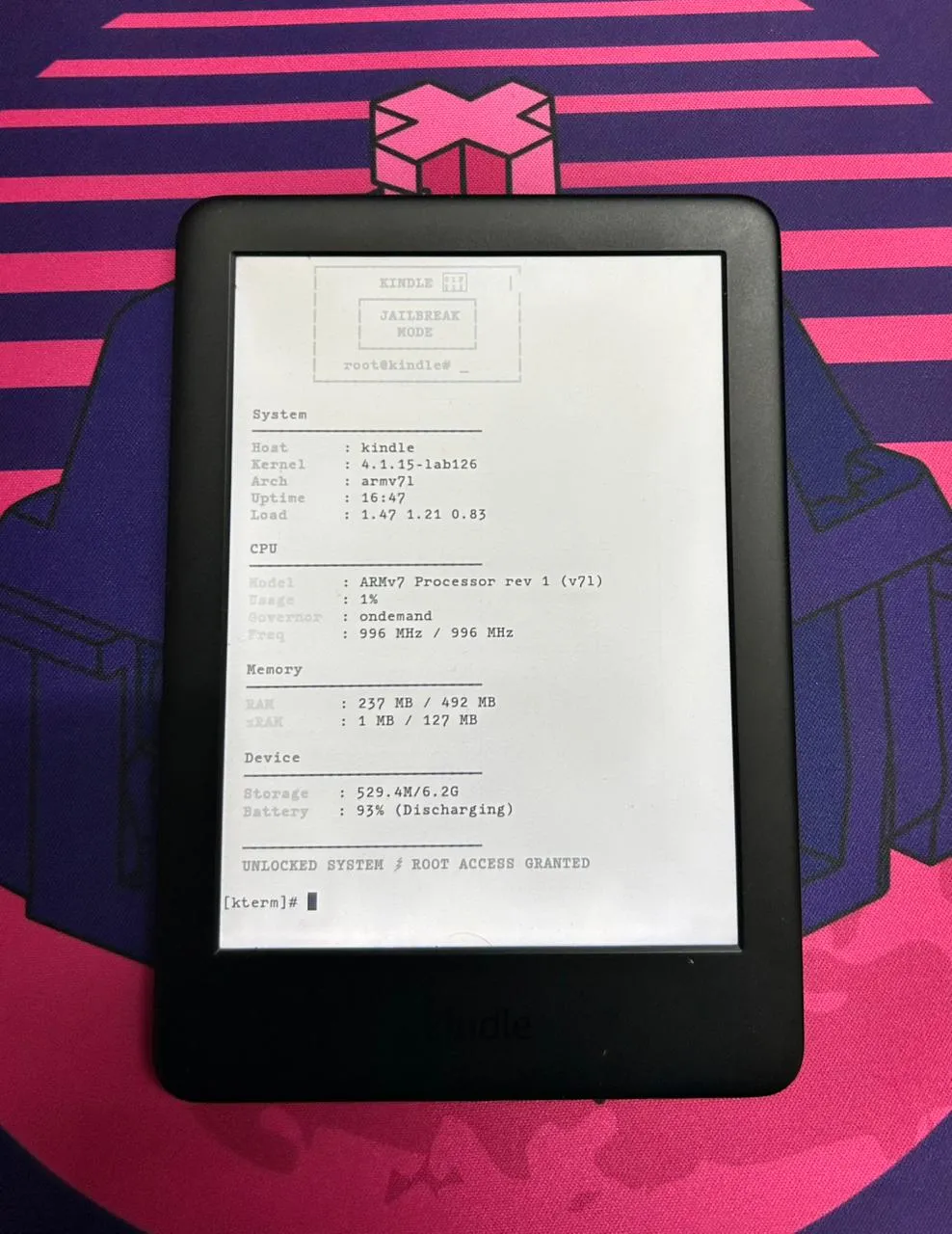
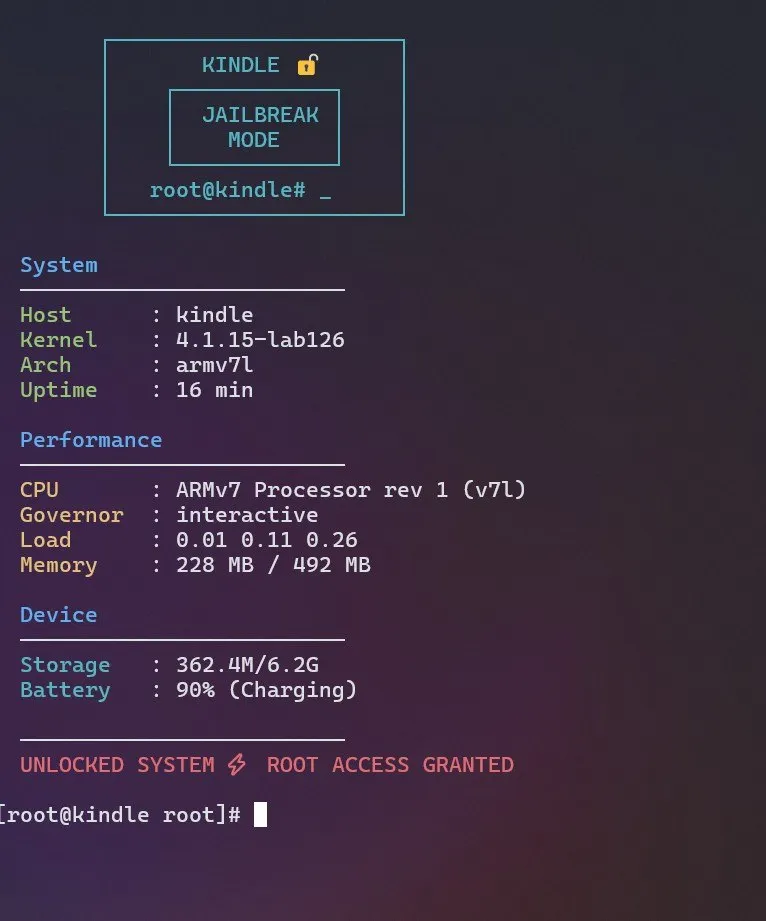
A custom fetch script I wrote for kindle
Minimal prompt optimized for e-ink
At this point, I had the system tuned perfectly, but continuously checking the changes was annoying.
I kept manually running the same commands:
cat scaling_governor
free
df
uptime
So I wrote a small script to pull everything together into one unified output.
#Issues I ran into
Nothing worked cleanly out of the box:
- ANSI escapes printed literally:
- BusyBox
echodoesn’t handle\033properly by default
- BusyBox
- Storage looked wrong:
df -h /shows the system partition (~500MB), not actual user storage
- Terminal support is minimal:
- No proper ncurses, inconsistent
$TERM
- No proper ncurses, inconsistent
So the script had to avoid all of that.
#!/bin/sh

# ---------- CLEAR ----------
printf "\033[2J\033[H"

# ---------- COLORS ----------
B="$(printf '\033[1;34m')"
G="$(printf '\033[1;32m')"
Y="$(printf '\033[1;33m')"
C="$(printf '\033[1;36m')"
R="$(printf '\033[1;31m')"
W="$(printf '\033[0m')"

# ---------- SYSTEM ----------
HOST=$(hostname)
KERNEL=$(uname -r)
ARCH=$(uname -m)
UPTIME=$(uptime | sed 's/.*up \([^,]*\), .*/\1/')
LOAD=$(cat /proc/loadavg | awk '{print $1 " " $2 " " $3}')

CPU_MODEL=$(grep -m1 "model name" /proc/cpuinfo | cut -d: -f2 | sed 's/^ //')

# ---------- CPU USAGE ----------
read cpu u n s i rest < /proc/stat
sleep 1
read cpu2 u2 n2 s2 i2 rest2 < /proc/stat

TOTAL1=$((u+n+s+i))
TOTAL2=$((u2+n2+s2+i2))

DIFF_TOTAL=$((TOTAL2 - TOTAL1))
DIFF_IDLE=$((i2 - i))

if [ "$DIFF_TOTAL" -eq 0 ]; then
    CPU_USAGE=0
else
    CPU_USAGE=$(( (100 * (DIFF_TOTAL - DIFF_IDLE)) / DIFF_TOTAL ))
fi

# ---------- CPU FREQ + GOV ----------
CPU_FREQ="N/A"
CPU_MAX="N/A"
GOV="N/A"

[ -f /sys/devices/system/cpu/cpu0/cpufreq/scaling_cur_freq ] && \
CPU_FREQ=$(awk '{print int($1/1000)" MHz"}' /sys/devices/system/cpu/cpu0/cpufreq/scaling_cur_freq)

[ -f /sys/devices/system/cpu/cpu0/cpufreq/cpuinfo_max_freq ] && \
CPU_MAX=$(awk '{print int($1/1000)" MHz"}' /sys/devices/system/cpu/cpu0/cpufreq/cpuinfo_max_freq)

[ -f /sys/devices/system/cpu/cpu0/cpufreq/scaling_governor ] && \
GOV=$(cat /sys/devices/system/cpu/cpu0/cpufreq/scaling_governor)

# ---------- MEMORY ----------
MEM_TOTAL=$(grep MemTotal /proc/meminfo | awk '{print int($2/1024)" MB"}')
MEM_FREE=$(grep MemAvailable /proc/meminfo | awk '{print int($2/1024)" MB"}')

# ---------- ZRAM ----------
ZRAM="Not active"
if grep -q zram /proc/swaps 2>/dev/null; then
    ZRAM_USED=$(grep zram /proc/swaps | awk '{print int($4/1024)" MB"}')
    ZRAM_TOTAL=$(grep zram /proc/swaps | awk '{print int($3/1024)" MB"}')
    ZRAM="$ZRAM_USED / $ZRAM_TOTAL"
fi

# ---------- DISK ----------
if df -h /mnt/us >/dev/null 2>&1; then
    DISK=$(df -h /mnt/us | awk 'NR==2 {print $3 "/" $2}')
else
    DISK=$(df -h / | awk 'NR==2 {print $3 "/" $2}')
fi

# ---------- BATTERY ----------
BAT=$(cat /sys/class/power_supply/*/capacity 2>/dev/null)
BAT_STATUS=$(cat /sys/class/power_supply/*/status 2>/dev/null)

# ---------- ASCII ----------
printf "\n"
printf "${C}        ┌──────────────────────┐\n"
printf "        │       KINDLE 🔓      │\n"
printf "        │    ┌────────────┐    │\n"
printf "        │    │  JAILBREAK │    │\n"
printf "        │    │    MODE    │    │\n"
printf "        │    └────────────┘    │\n"
printf "        │   root@kindle# _     │\n"
printf "        └──────────────────────┘${W}\n"

# ---------- OUTPUT ----------
printf "\n${B}  System${W}\n"
printf "  ─────────────────────────\n"
printf "  ${G}Host      ${W}: %s\n" "$HOST"
printf "  ${G}Kernel    ${W}: %s\n" "$KERNEL"
printf "  ${G}Arch      ${W}: %s\n" "$ARCH"
printf "  ${G}Uptime    ${W}: %s\n" "$UPTIME"
printf "  ${G}Load      ${W}: %s\n" "$LOAD"

printf "\n${B}  CPU${W}\n"
printf "  ─────────────────────────\n"
printf "  ${Y}Model     ${W}: %s\n" "$CPU_MODEL"
printf "  ${Y}Usage     ${W}: %s%%\n" "$CPU_USAGE"
printf "  ${Y}Governor  ${W}: %s\n" "$GOV"
printf "  ${Y}Freq      ${W}: %s / %s\n" "$CPU_FREQ" "$CPU_MAX"

printf "\n${B}  Memory${W}\n"
printf "  ─────────────────────────\n"
printf "  ${Y}RAM       ${W}: %s / %s\n" "$MEM_FREE" "$MEM_TOTAL"
printf "  ${Y}zRAM      ${W}: %s\n" "$ZRAM"

printf "\n${B}  Device${W}\n"
printf "  ─────────────────────────\n"
printf "  ${C}Storage   ${W}: %s\n" "$DISK"
printf "  ${C}Battery   ${W}: %s%% (%s)\n" "${BAT:-N/A}" "${BAT_STATUS:-Unknown}"

printf "\n  ─────────────────────────\n"
printf "  ${R}UNLOCKED SYSTEM ⚡ ROOT ACCESS GRANTED${W}\n\n"
With the core system optimized and the terminal environment fully built out, there was only one friction point left: moving the actual payload (books) onto the device.
#File Access over Wi-Fi
Earlier I mentioned there was one remaining use case where the Amazon Ui still had an edge: getting books onto the device.
By default, you cannot actually access files via MTP while you are inside KOReader. To transfer books via USB, you have to completely exit KOReader and return to the stock Amazon UI just so your PC can mount the device. That gets tedious fast.
Instead, I use the FileSync extension directly inside the KOReader UI to solve this exact problem and enable wireless transfers.
It hosts a local web server on the Kindle and exposes the file system over Wi-Fi. Scanning the provided QR code or opening the local link gives me instant access to drop new books onto the device wirelessly. No cables required.
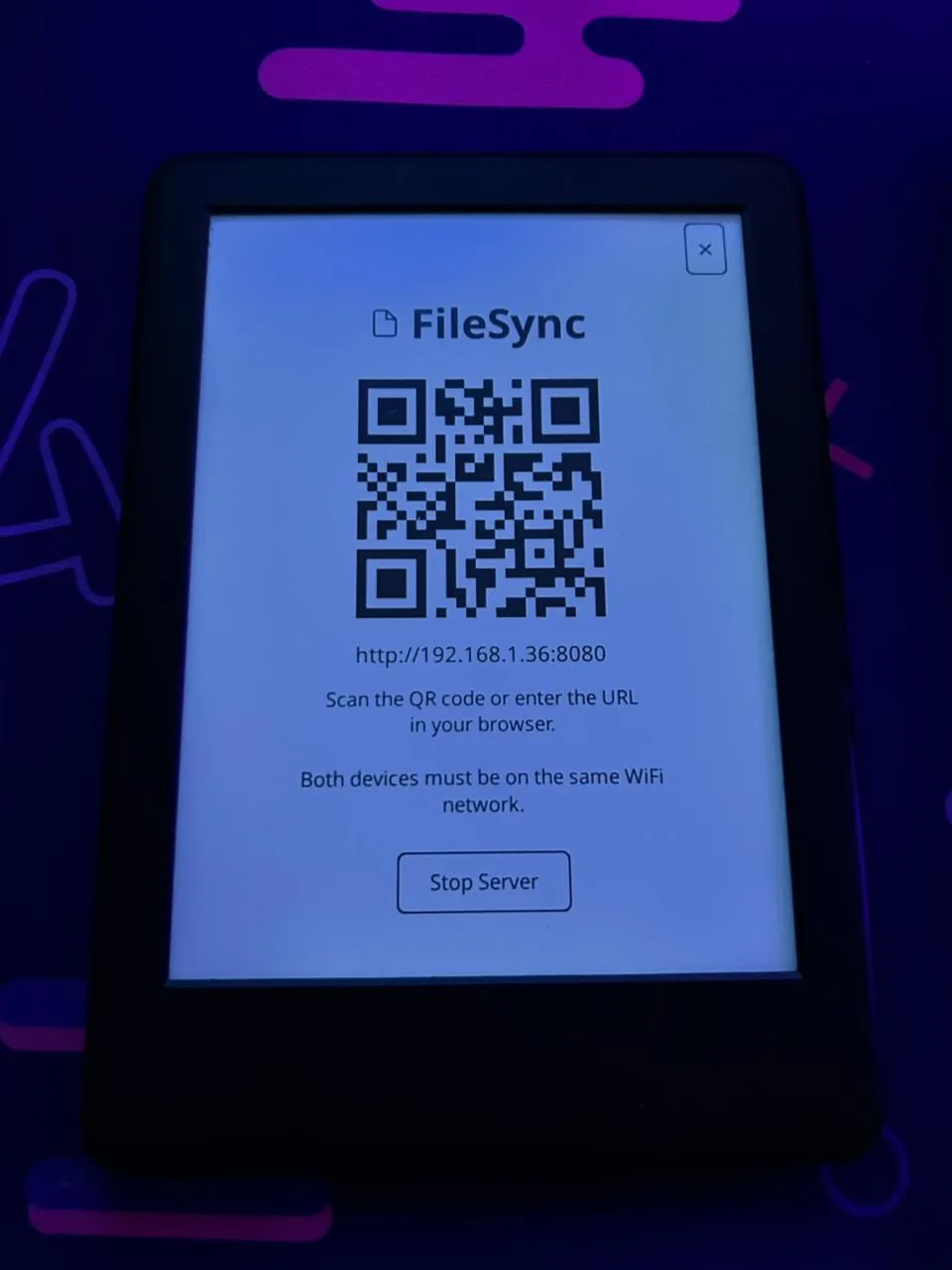
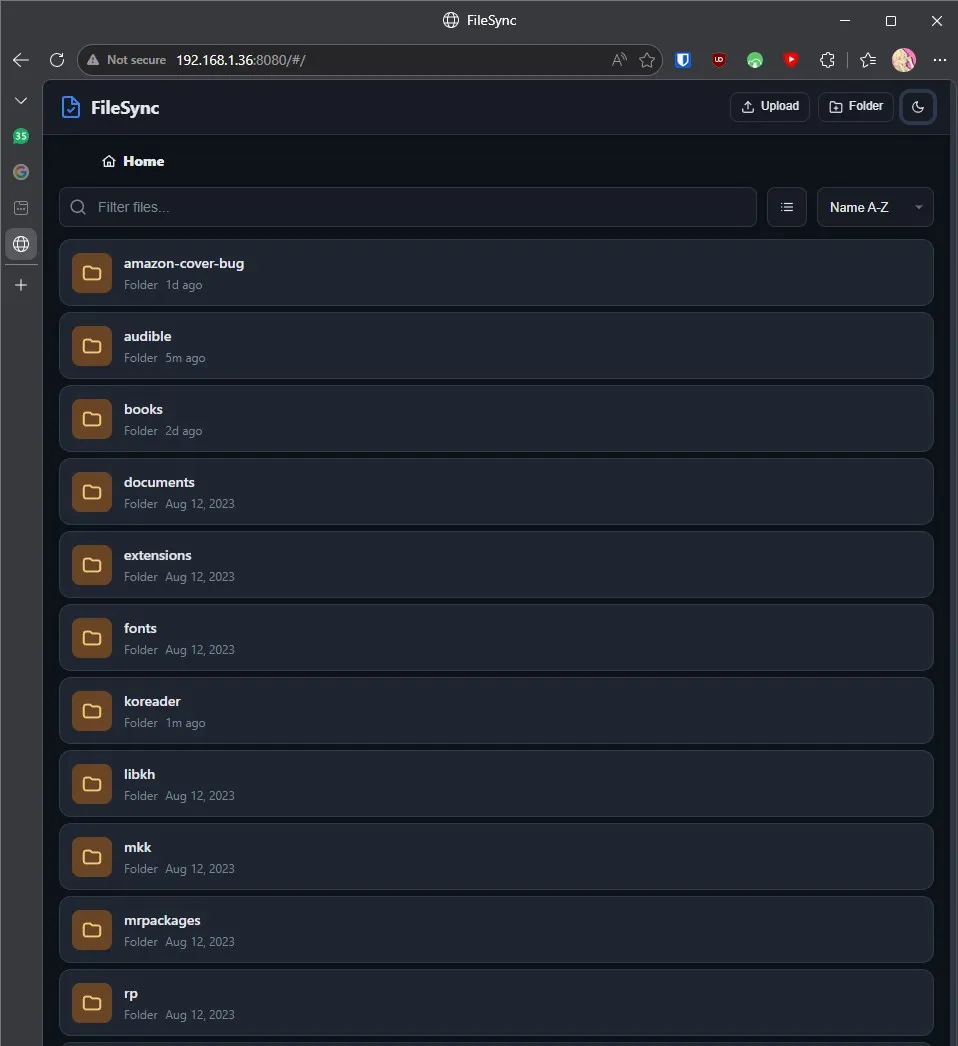
FileSync in action
#Conclusion
This project started because the Amazon UI was clunky, PDF rendering was painful, and reading on the Kindle felt artificially constrained.
By the end, I had:
- Escaped the OTA update trap with a permanent LanguageBreak jailbreak.
- Built a modern, ultra-fast reading environment via KOReader.
- Optimized the embedded Linux core by setting up ZRAM swap and tweaking VM swappiness.
- Stripped out heavy Amazon telemetry and background indexing services.
- Gained proper persistent terminal access with a tailored BusyBox
ashconfig. - Set up wireless file management via an embedded web server.
Now, whether I'm diving back into Aristotle and Dante or skimming through a heavy technical PDF, the device finally has a simple, resource-light UI.
More importantly, it finally feels like mine, and that sense of ownership made digging into its internals far more meaningful, giving me a much deeper appreciation for constrained embedded Linux environments and turning a dusty e-reader into a genuinely fun hacking project.